Menu
A long press on the touch panel opens the Menu, which provides options to refresh the user interface and access the settings.

Access to the settings is protected by a password. This password can be configured in Interface Preferences.

Reload Interface
This option forces a reload of the user interface.
It can be useful if the display becomes unresponsive or if recent changes are not yet reflected.
Interface Preferences
The Interface Preferences menu allows configuring the Companion application.

View URL
The View URL defines which DALION view is displayed on the touch panel.
To obtain the correct URL:
- Navigate to the desired View from a computer browser.
- Note the URL address from the address bar of the browser.
- Enter the URL into the Companion interface setting.
Example: To display View 1 of a DALION with the default IP address:
http://192.168.0.210/views/0
Settings Password
The Settings Password protects access to the configuration menus.
The default password is: DALION
Network Settings
The Network Settings menu allows configuring Ethernet or Wi-Fi connectivity.

To configure a static Ethernet IP address:
- Press the Ethernet menu
- Enable Ethernet
- Select Ethernet Ip Mode
- Choose Static
- Enter the IP address, gateway, and netmask

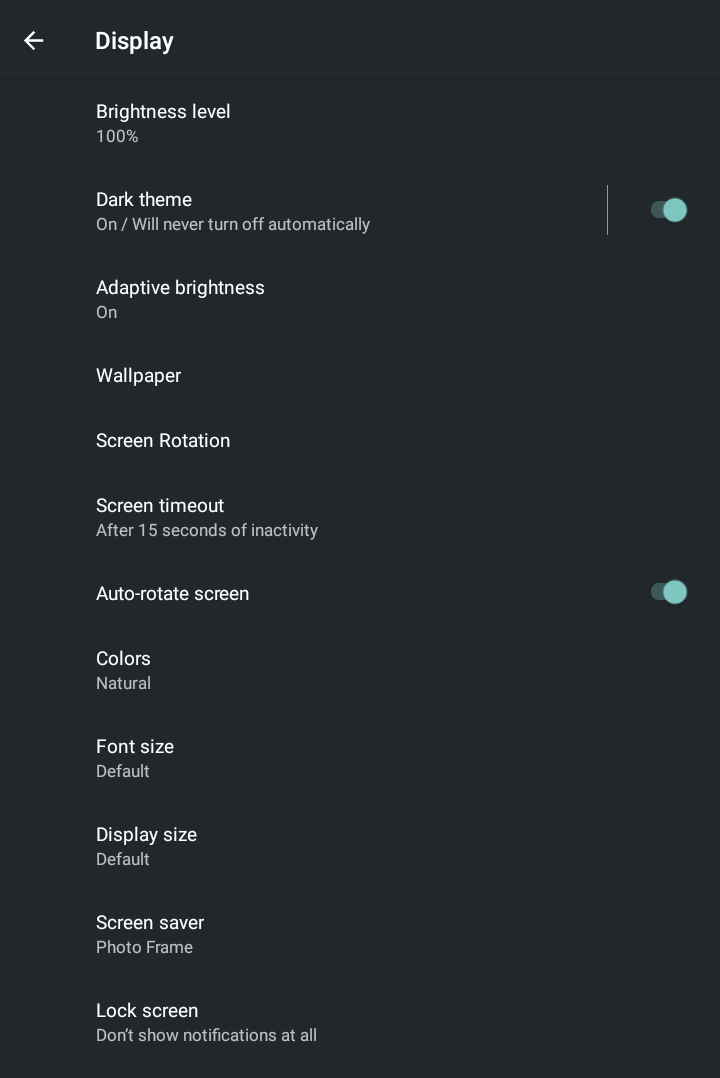
Display Settings
The Display Settings menu allows adjusting basic display parameters such as brightness, rotation, screen saver, and other options.